Wednesday, 1 June 2016

WSUS sync fails with HTTP 503 errors

During the SCCM 2012 Migration, as soon as we complete, we probably get this error where number of SCCM client is high.

Error on SMS_WSUS_SYNC_MANAGER component

Message ID: 6703
WSUS Synchronization failed.
Message: The request failed with HTTP status 503: Service Unavailable.
Source: Microsoft.UpdateServices.Administration.AdminProxy.CreateUpdateServer.

When you attempt to open Update Services on the WSUS server you receive the following error:

error: Connection Error
An error occurred trying to connect to the WSUS server. This error can happen for a number of reasons. Please contact your network administrator if the problem persists. Click the Reset Server Node to connect to the server again.

In wsyncmgr.log you will get the below error,

Sync failed: The request failed with HTTP status 503: Service Unavailable.


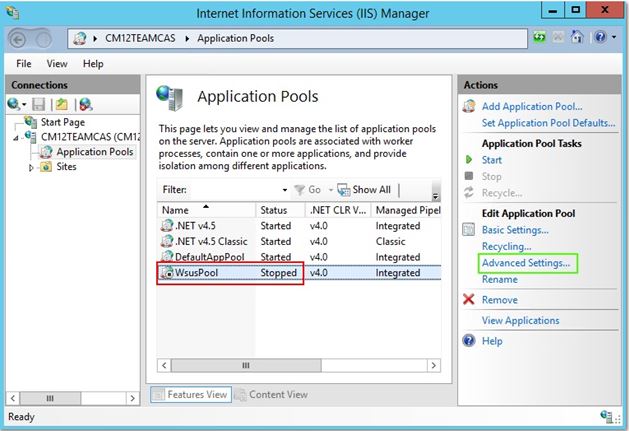
In this situation, the most likely cause is that the WsusPool Application Pool in IIS is in a stopped state, as shown below.


Also, the Private Memory Limit (KB) for the Application Pool is probably set to the default value of 1843200 KB.


If you encounter this problem, increase the Private Memory Limit to 4GB (4000000 KB) and restart the Application Pool. To increase the Private Memory Limit, select the WsusPool Application Pool and click Advanced Settings under Edit Application Pool. Then set the Private Memory Limit to 4GB (4000000 KB).

After the Application Pool has been restarted, monitor the SMS_WSUS_SYNC_MANAGER component status, wcm.log and wsyncmgr.log for failures. Please note that it may be necessary to increase the Private Memory Limit to 8GB (8000000 KB) or higher depending on the environment.

Access content directly from distribution point - SCCM 2012

Microsoft introduced the new content library, the idea is to save space by saving all files in a library but only save identical files once, and refer to the location for all other instances of the file. The idea is good, but it comes with a price. All content stored in the library must be extracted during installation. This slows down the deployment meaning all files will have to be downloaded by the client.

If you want to change this and store your content in a share, you can. Please be aware that this has a cost in disk space.

On all your content in the task sequence meaning packages, boot, images, drivers even the configuration manager agent, select “copy the content in this package to a package share on distribution points.”


At this point you will start to see package shares (eg smspkgc$) start to appear on the distribution points, just like they would in SMS & SCCM ‘07. Once all of the packages have had the above option enabled, open up your task sequence deployment (aka advertisement) and on the Distribution Point tab you will now see an additional option in your drop down box:

Of course you should have a think about and understand the effect this is going to have, for example this may used up to double the amount of storage space for each package on your DP as the files will be stored in the Content Library as well as the Package Share location.

Monday, 14 March 2016

Error - Cannot create NAL path for the distribution point


Sometimes distribution point unable to process the distributed package and state as waiting to install package for long time.

And when you check the distmgr.log you get the below error,

Error - Cannot create NAL path for the distribution point

That’s the error, the distribution manager component is trying to create the folder using a wrong provider.

Solution

Now  The NAL providers are stored in Registry and all 4 providers (LOCAL, MSWNET, NWNDS, NWBIND) was found the HKLM\Software\Microsoft\NAL\Providers\Active Orders key. And you will discover that the HKLM\Software\Microsoft\NAL\Server\Connections\Operational Active Order was missing an important value  and have only LOCAL.

added MSWNET to the list and restart the SMS_executive service.

Refresh the package from SCCM Console and monitor the distmgr.log.

Thursday, 10 March 2016

Difference between Obsolete and Inactive Clients

Obsolete Clients

Obsolete client s are those that have been replaced by new ones. This usually happens during refresh OS deployments where the hardware stays the same and thus the hardware id is the same but the SMS GUID changes because the OS has been reloaded or the GUID is regenerated for another reason but the hardware remains the same.

Reasons -
1. hard disk swapping
2. Renaming machines
3. Reimage OS
4. Reinstalling SMS/SCCM agent on the machines without proper uninstall.

Inactive Clients 

Inactive client s are those that have not been discovered recently by the heartbeat discovery. The definition of recently is defined in the delete task as a number of days. Please note that obsolete client s are also marked inactive.

Reasons-
1. Offline machines
2. Machines having DNS issue/No name resolution
3. Machines are in inventory stock

Clean Up Inbox !


  • Compsumm.box – This is for component summarize messages.  If you have old stuff, it may not be relevant any more so remove the files.
  • CIAMgr.box – Configuration items, probably related to patches but perhaps for other things.  If the files are older than a week, they have probably been forgotten and can be removed.
  • Auth\dataldr.box\badmifs – Hardware inventory that was bad for some reason.  Often times the bad file will be a temporary thing and the system will self correct, leaving files behind.  Once you have investigated and solved the reason it is bad, feel free to remove the files.
  • Hman.box – Don’t touch stuff in the subfolders, but if files in the root are old, site communication probably had a hiccup at some time and the files can be removed.
  • Sinv.box\badsinv – Software inventory gone bad, similar to the dataldr.box\badmifs.  Remove files once any investigation is done.
  • Statmgr.box – These are status messages and old files can be removed as they are probably no longer relevant.
  • Auth\statesys.box\corrupt – Old status messages here should be removed .  They are probably out of date anyway.
  • Auth\ddm.box\regreq\bad_ddrs - These are discovery records that couldn't process for some reason.
  • Colleval.box - old .CEP files may become orphaned and can be safely deleted if older than a week

SCCM 2012 and Fallback

Fallback Status Point

The Fallback Status Point (FSP) is a role is used to receive State Messages from clients, similar to a management point (MP).  The difference is that only certain types of state messages are sent to a FSP, in particular messages related to client installation, client site assignment, and clients unable to communicate with their HTTPS MP.  There are built-in reports that can be leverage to view the data the is received by the FSP

There are various reports available for viewing the results of the data processed by the Fallback Status Point.  They are located in the "SMS - Client Information" category in Reporting Services.  The ones related to Client Installation and Site assignment are:


  1. Client assignment detailed status report
  2. Client assignment failure details
  3. Client assignment status details
  4. Client assignment success details
  5. Client deployment failure report
  6. Client deployment status details
  7. Client deployment success report


Fallback Site

The next "Fallback" to discuss is using a "Fallback Site".  I recommend using caution when enabling this feature.  It can lead to unexpected results if its not used properly.  In Configuration Manager 2012, simply creating boundaries is not enough.  It order to define a boundary to be used for Site Assignment it must be added to a Boundary Group that is enabled for Site Assignment.  The Fallback Site allows clients that are installed using the SMSSITECODE=AUTO installation property to be assigned to the Fallback Site if they are not located in a boundary that is associated with a Boundary Group that is enabled for Site Assignment.

Fallback for Content Location

Finally, let's dive into the "fallback" for content location feature.  Essentially, this feature is designed to allow client to gain access to content that is not available on a Distribution Point (DP) that is located in their Boundary Group.  If this feature is not implemented correctly, it can lead to unexpected results and high network utilization over remote WAN links.

SCCM and WMI


WMI in SCCM

ConfigMgr uses WMI extensively for both client and server operations. The ConfigMgr client uses WMI for internal control of its own operations and for gathering hardware inventory. ConfigMgr also uses WMI as an interface to the site database.

ConfigMgr Client Namespaces

The ConfigMgr client agent gathers hardware inventory data by querying WMI. The Client Agent settings determine which object classes are reported as part of the client inventory. For the majority of hardware inventory policy definitions, enabling or disabling what is reported from the clients to the ConfigMgr infrastructure is done from the console, via Client Agent settings

WMI on ConfigMgr Servers

The SMS Provider is a WMI provider that exposes many of the most important objects in the ConfigMgr site database as WMI managed objects. This provider is generally installed on either the site server or the site database server
The SMS Provider namespace is Root\SMS\site_<site code>. You can use standard WMI tools to view ConfigMgr classes and objects.

🔍SCCM (MECM) RAS Assessment

  SCCM (MECM) RAS Assessment – Comprehensive Checklist 1️⃣ Site Infrastructure & Core Health ✔ Site Server Component Status Site c...